Sync with Google Drive
Paperpile can sync your PDFs and files to Google Drive. This lets you access them on all devices and applications that support Google Drive.
Turn on Google Drive sync
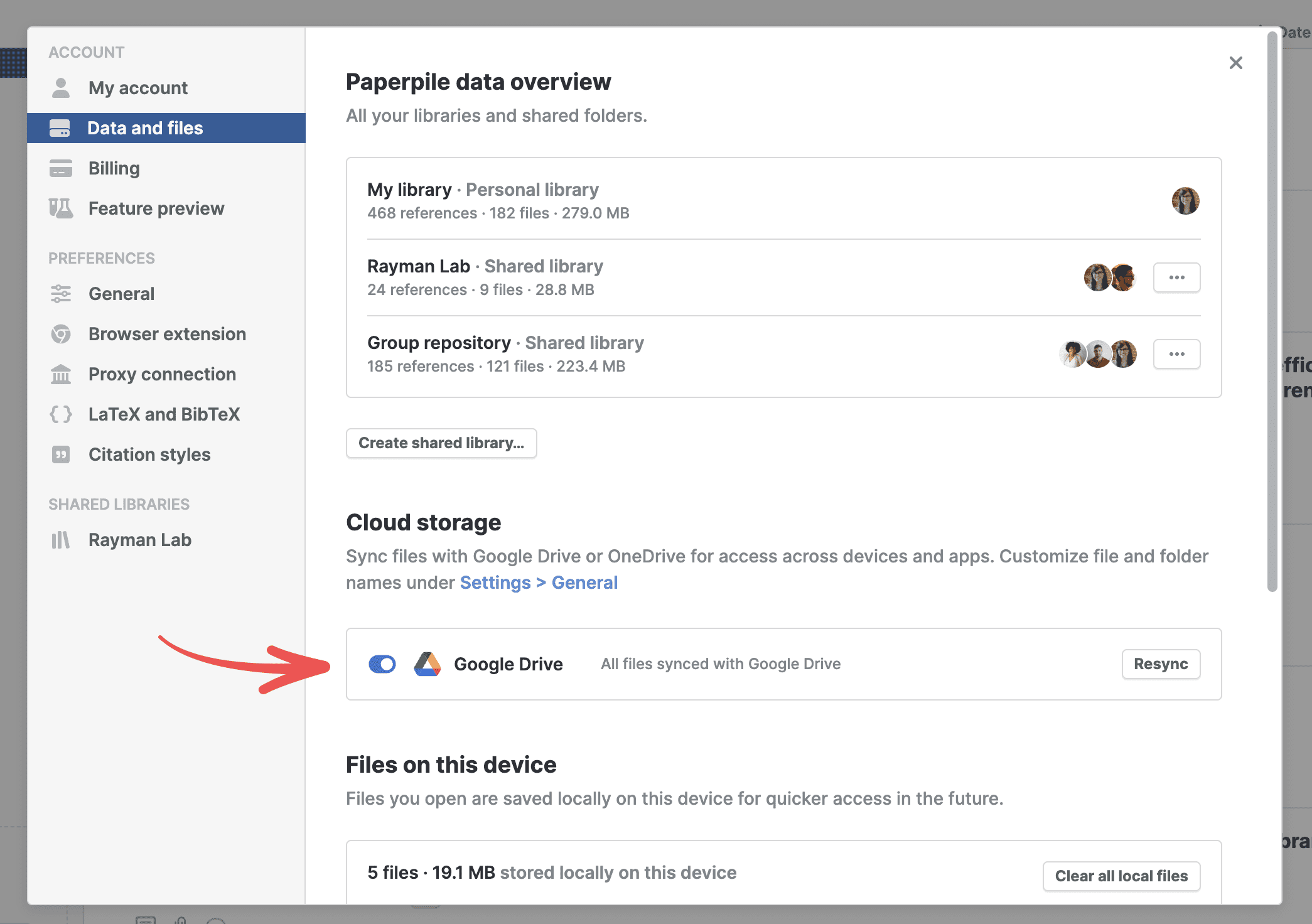
- Click your profile picture in the bottom left of the web app
- Go to Settings > Data and files
- In the Cloud storage section, turn on the switch for Google Drive
- Sign in with your Google account
- In the Google sign-in dialog, grant access to continue
Once enabled, Paperpile syncs files automatically in the background.
Access your Paperpile files in Google Drive
Your synced files appear in a Paperpile folder in your Google Drive. You can access them from:
- Google Drive on the web
- Google Drive desktop apps
- Google Drive mobile apps
The files in Google Drive always reflect your current Paperpile library.
How file syncing in Google Drive works
Automatic syncing
Once enabled, Paperpile syncs all your PDFs and supplementary files to Google Drive automatically. You don't need to manually upload or manage files.
What syncs
- PDFs attached to references
- Supplementary files
- File updates and deletions
Make changes in Paperpile, not Google Drive
Always delete or rename files in Paperpile, not directly in Google Drive. This ensures your library and Google Drive stay in sync. Paperpile will attempt to fix inconsistencies, but making changes in Paperpile is the safest approach.
Check sync status of individual files
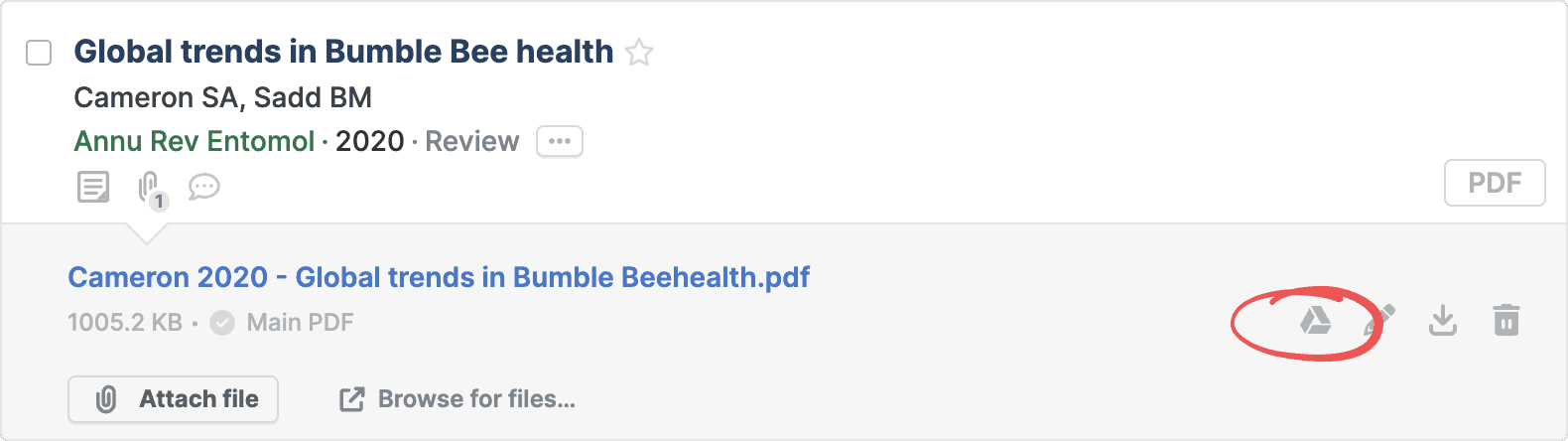
To see if a file is synced to Google Drive:
- Click the paperclip on any reference to open its files panel
- Look for the Google Drive button next to each file
The color of the Google Drive button in the files panel shows the sync status.
Dark gray: File is synced to Google Drive
Light gray: Syncing in progress
If no Google Drive button shows, the file is not synced to Google Drive.
File organization in Google Drive
By default, Paperpile organizes files in Google Drive as follows:
- Folder structure: Files are arranged in folders by the first letter of the first author's last name
- File names:
- Main PDFs: Renamed using "Author year - Title"
- Supplementary files: Keep their original filename with an "Author year" prefix
Change file and folder names pattern
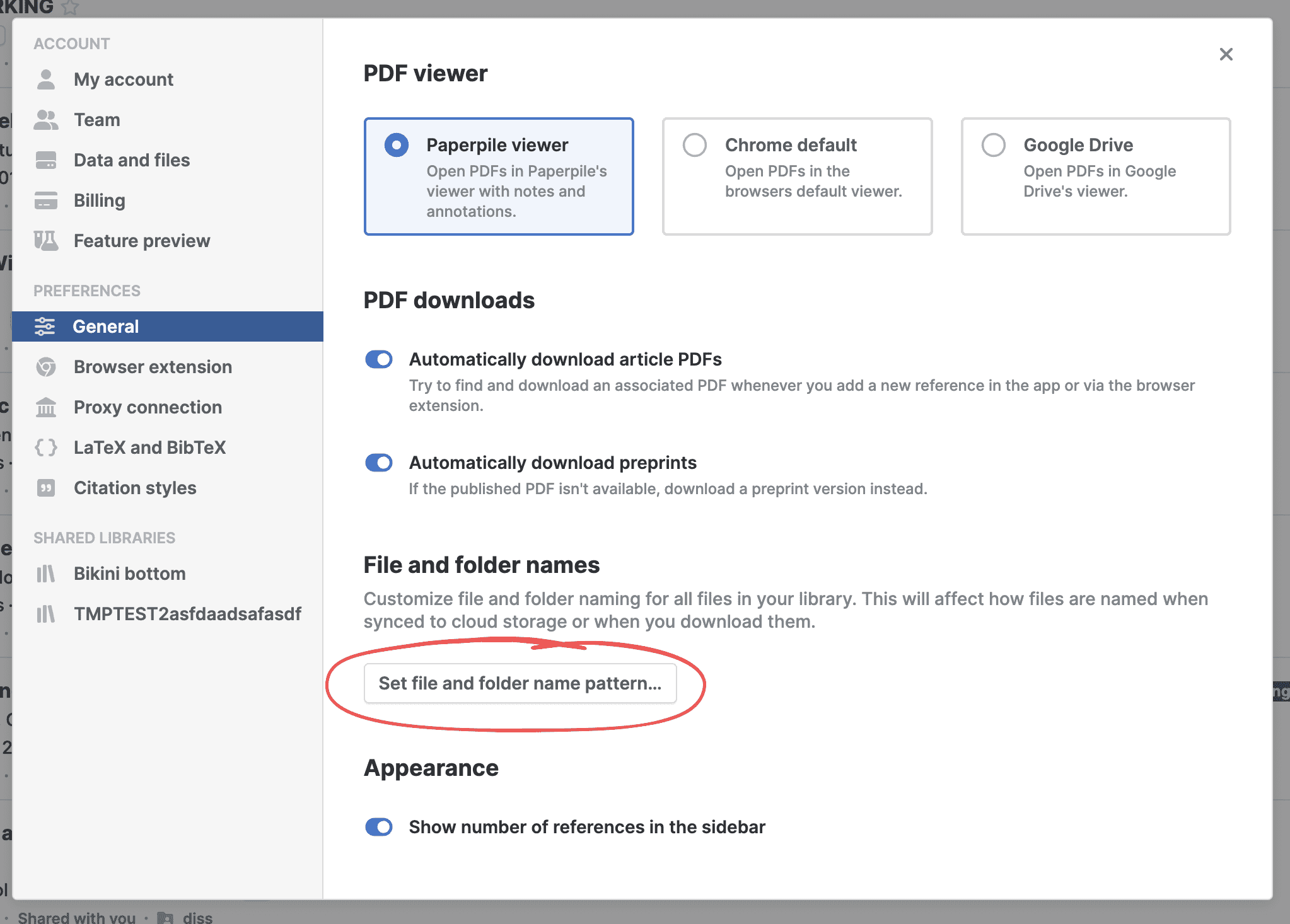
To customize how files are named and organized:
- Go to Settings > General
- In the File and folder names section, click Set file and folder name pattern…
- Choose your preferred naming pattern
For more details, see Customize file and folder names.
Turn off Google Drive sync
If you no longer want to sync your Paperpile library with Google Drive:
- Go to Settings > Data and files
- In the Cloud storage section, turn off the switch for Google Drive
What happens to your files
When you turn off sync, your files remain in Google Drive. They won't be deleted. However:
- New files added to Paperpile won't sync to Google Drive
- Changes to existing files in Paperpile won't update in Google Drive
- Files deleted from Paperpile won't be deleted from Google Drive
To remove files from Google Drive completely, delete them manually from your Google Drive after turning off sync.
Troubleshooting
Authentication issue
If there is an authentication issue that needs to be resolved, the Google Drive button will appear next to your profile picture in the bottom left. Follow the instructions to re-authenticate with Google Drive and resolve the issue.
Sync has been disabled because of errors
If there are problems syncing your files (for example, Google's servers are temporarily overloaded), Paperpile will automatically try again and no action is required. However, if a problem persists and several sync attempts fail, syncing will be disabled. To fix:
- Wait a few minutes
- Go to Settings > Data and files
- In the Cloud storage section, click Resync next to Google Drive
Your Google Drive is full
If your Google Drive is full, Paperpile will display the message “There was a problem syncing due to low Drive space. Please free up some space and then click Resync”.
Your institution blocks Google Drive access
If your institution or company does not allow access to Google Drive, contact an administrator to enable Google Drive apps for your Google account.
Common questions
Can I change where files are stored in Google Drive?
No. Files are stored in the Paperpile folder in your Google Drive. However, you can customize the folder structure and file naming within that folder.
What happens if I delete a file in Google Drive?
Paperpile will detect the deletion and re-upload the file to Google Drive during the next sync. To permanently delete a file, delete it in Paperpile.
Can I sync to both Google Drive and OneDrive?
Yes. You can sync to both cloud storage services in Settings > Data and files. For OneDrive sync details, see Sync with OneDrive.