Print PDFs and export annotations
Paperpile lets you print PDFs with or without annotations directly from the PDF viewer. You can also export your annotations in several formats to use them in note-taking apps, writing tools, or other workflows.
Print a PDF
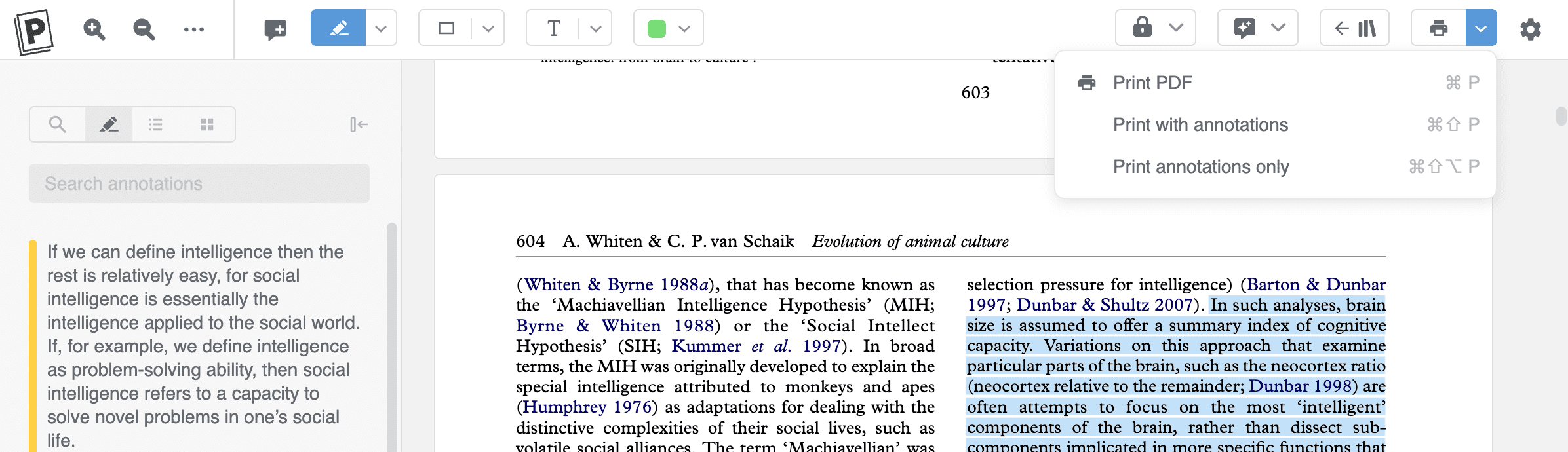
In the PDF viewer toolbar, open the print menu on the top right to see three options:
- Print PDF — Prints the PDF without annotations. You can also press Cmd+P (macOS) or Ctrl+P (Windows/Linux).
- Print with annotations — Prints the PDF with all your highlights, notes, and other annotations visible on the page. You can also press Cmd+Shift+P (macOS) or Ctrl+Shift+P (Windows/Linux).
- Print annotations only — Prints a summary of your annotations without the PDF content.
Export annotations
Click Export at the bottom of the left sidebar to view and save annotations in your preferred format.
- PDF — Save a summary of your annotations in PDF format to your computer.
- Plain text — Save a .txt file or copy the text to the clipboard to paste it elsewhere.
- Rich text — Copy your annotations as formatted text to paste into word processors or other apps that support rich text.
- Markdown — Save a .md file or copy the Markdown-formatted text to the clipboard. This is useful for note-taking apps like Obsidian or Notion.
- JSON — Save a .json file or copy the data to the clipboard. Useful if you want to process your annotations programmatically.
- OPML — Save an .opml file or copy the data to the clipboard. OPML is supported by many outlining and note-taking apps.
Annotations summary
At the bottom of the left sidebar, click Summary to view all annotations for a PDF in a separate browser tab.
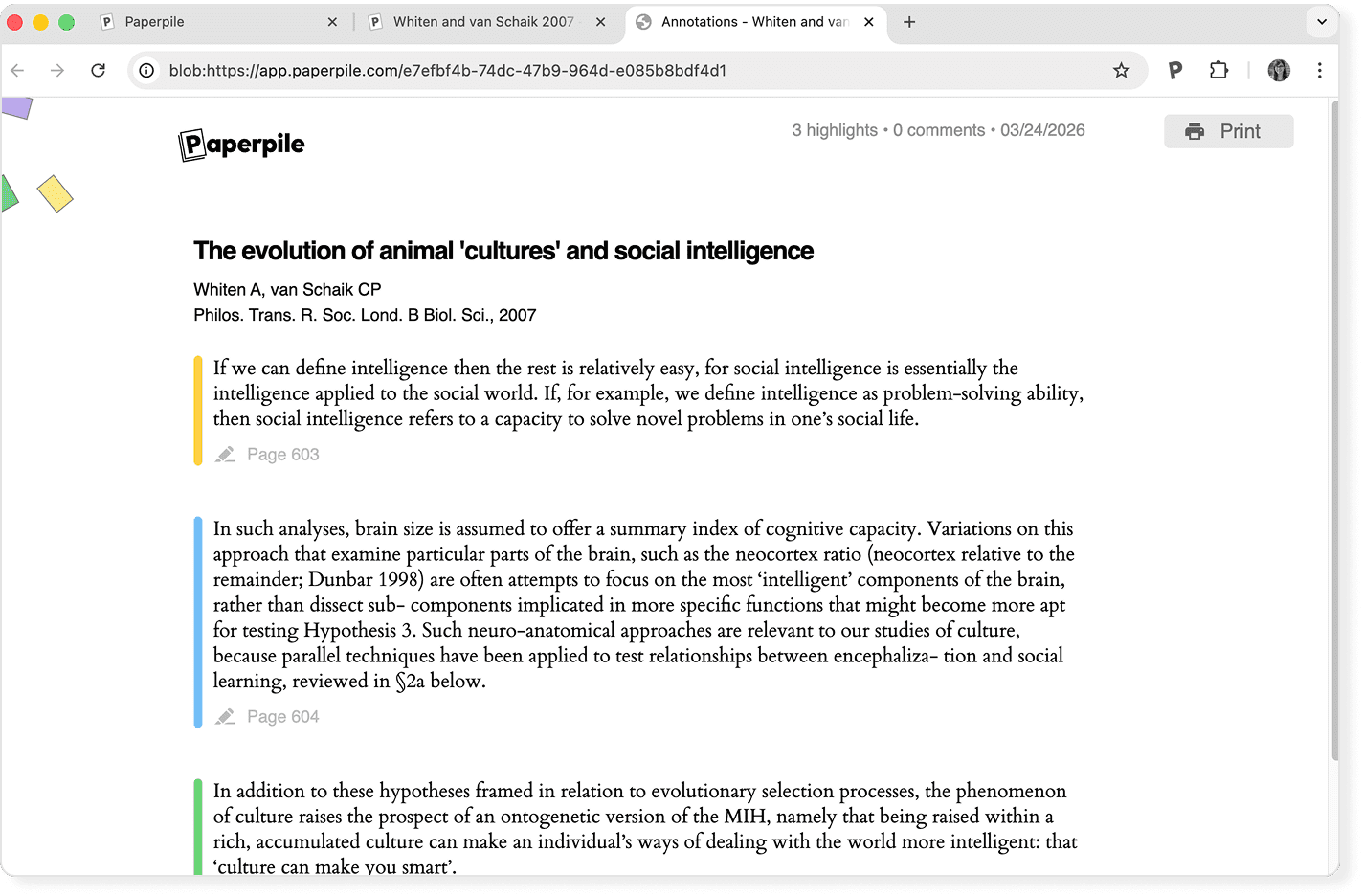
You can use this view to quickly scan through or print all your annotations at once. To learn more about adding annotations to PDFs, see Add notes and annotate PDFs.